Home and navigation
The top bar
Section titled “The top bar”Across the top of every Employee Center page you’ll find:
- The brand mark, which always takes you back to the home page.
- A global search box — start typing and a dropdown shows matching knowledge articles and destinations before you even press Enter.
- My Assets, My Tasks (with a badge showing your open count), My Requests, and My Favorites — direct shortcuts to your own items.
- A notification bell.
- More, a menu of secondary destinations like the org chart and location directory.
- Your avatar, which opens Profile, Preferences, and (for admins) Impersonate and Log out.
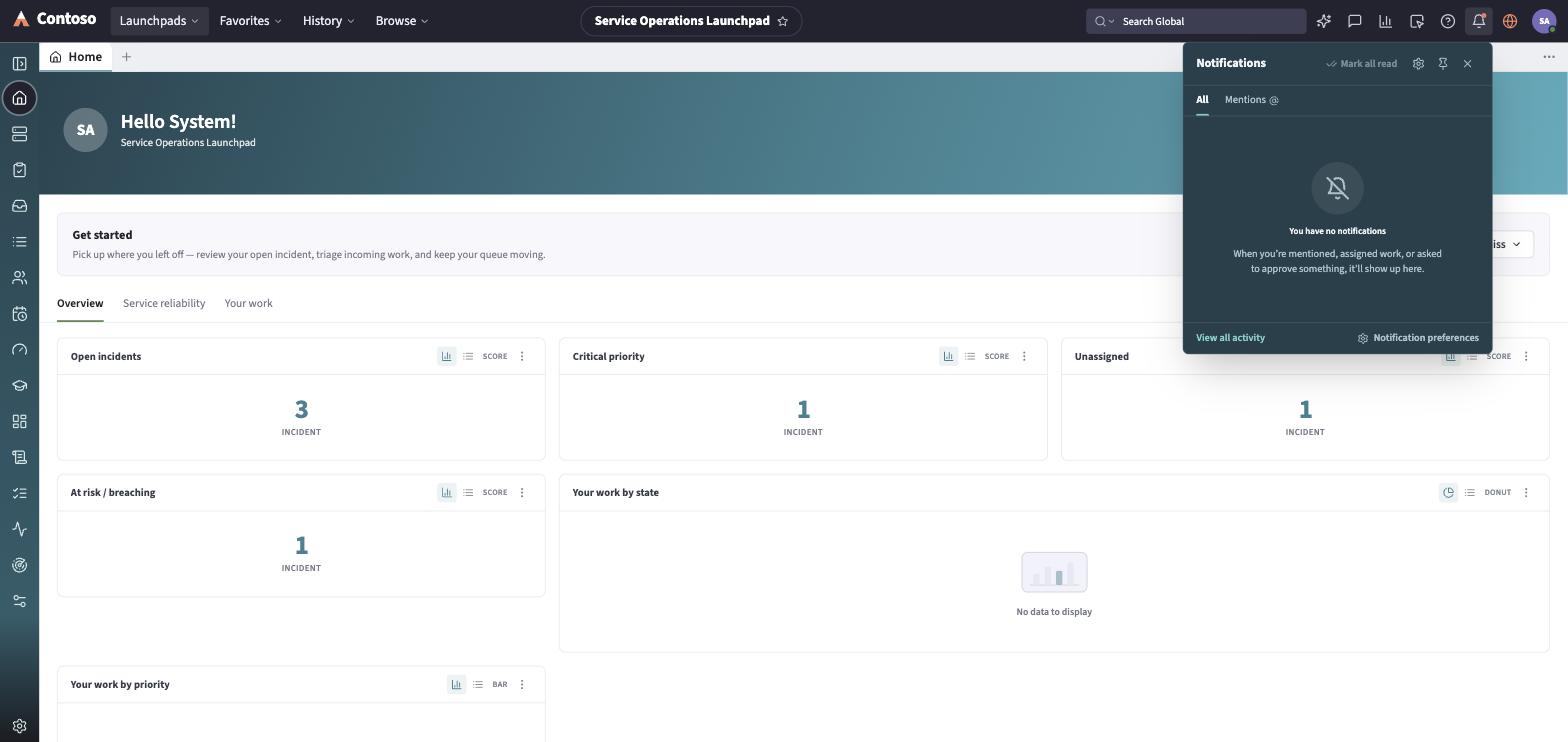
Click the bell to see what’s changed on things you’re following. The panel opens on the All tab; switch to Mentions to see only notifications where someone tagged you by name. Click a notification to jump straight to it, mark one read individually or use Mark all read, or dismiss one you don’t need. A gear icon in the panel header jumps directly into your notification preferences.
Below that sits the Help center menu — a category list (Human Resources, Technology Services, Workplace Services, Logistics Services, Health and Safety, Legal, Purchases and Expenses, Finance, Cloud Services, Company, and more). Hover a category to see its topics, or click Browse to see everything in it.
The home page
Section titled “The home page”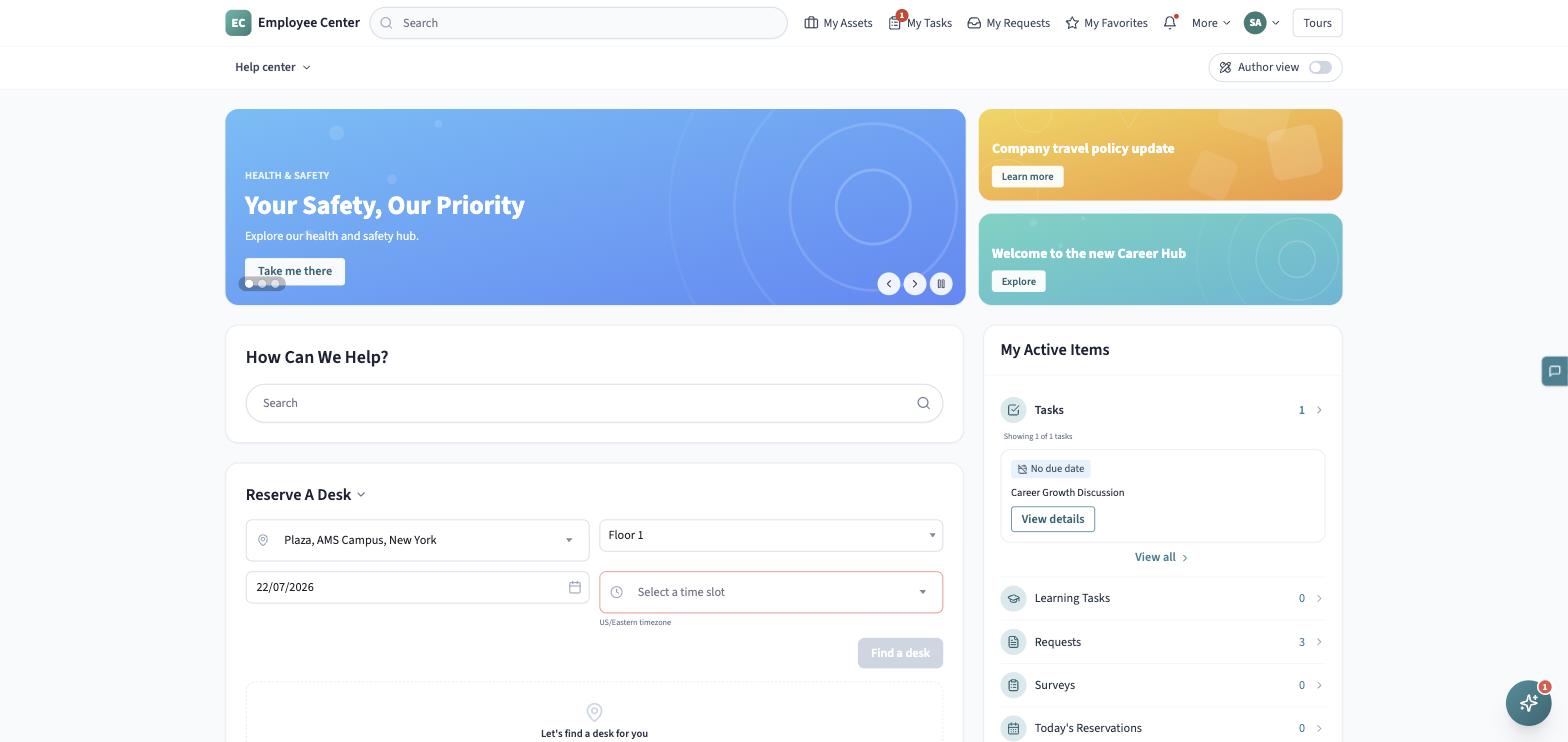
The home page is a grid of widgets you can personalize:
- A “How can we help?” search card, with the same live suggestions as the top bar’s search box.
- Quick Links — a small set of tiles to common destinations.
- Popular topics — a row of topic chips; clicking one runs a search for it.
- My active items — a running list of your open tasks, with a link through to the full list.
- Recommended for you — knowledge articles worth reading, picked from what’s most viewed.
Depending on how your organization has configured the page, you may also see a rotating announcement banner, a desk- or room-booking widget, a favorites widget, an upcoming-events widget, and a service-status widget.
If you have edit permission, an Author view toggle in the top bar reveals each widget’s controls — drag to reorder, edit its settings, hide it, or add a new one — so you can personalize your own home page layout.
Browsing a category
Section titled “Browsing a category”Selecting a category (from the Help center menu or a Quick Link) opens its landing page: a header band, a row of topic chips, and a Support resources list that mixes requestable items and knowledge articles. From there you can filter by All, Articles, or Requests, sort Popular or A-Z, search within the category, and switch between card and list views.
Getting help or feedback
Section titled “Getting help or feedback”A floating Provide feedback tab sits at the edge of every page if you want to rate your experience. A separate floating button opens the Virtual Assistant for a conversational way to find an answer or start a request.