Knowledge
Finding an article
Section titled “Finding an article”You can reach knowledge articles two ways:
- Search — type into the search box on the home page or in the top bar. As you type, a dropdown groups matches under Knowledge (articles) and Catalog (destinations), so you can jump straight to the one you want.
- Browse — open Knowledge from the Help center menu to see every published article grouped by its knowledge base, with a count next to each group.
Reading an article
Section titled “Reading an article”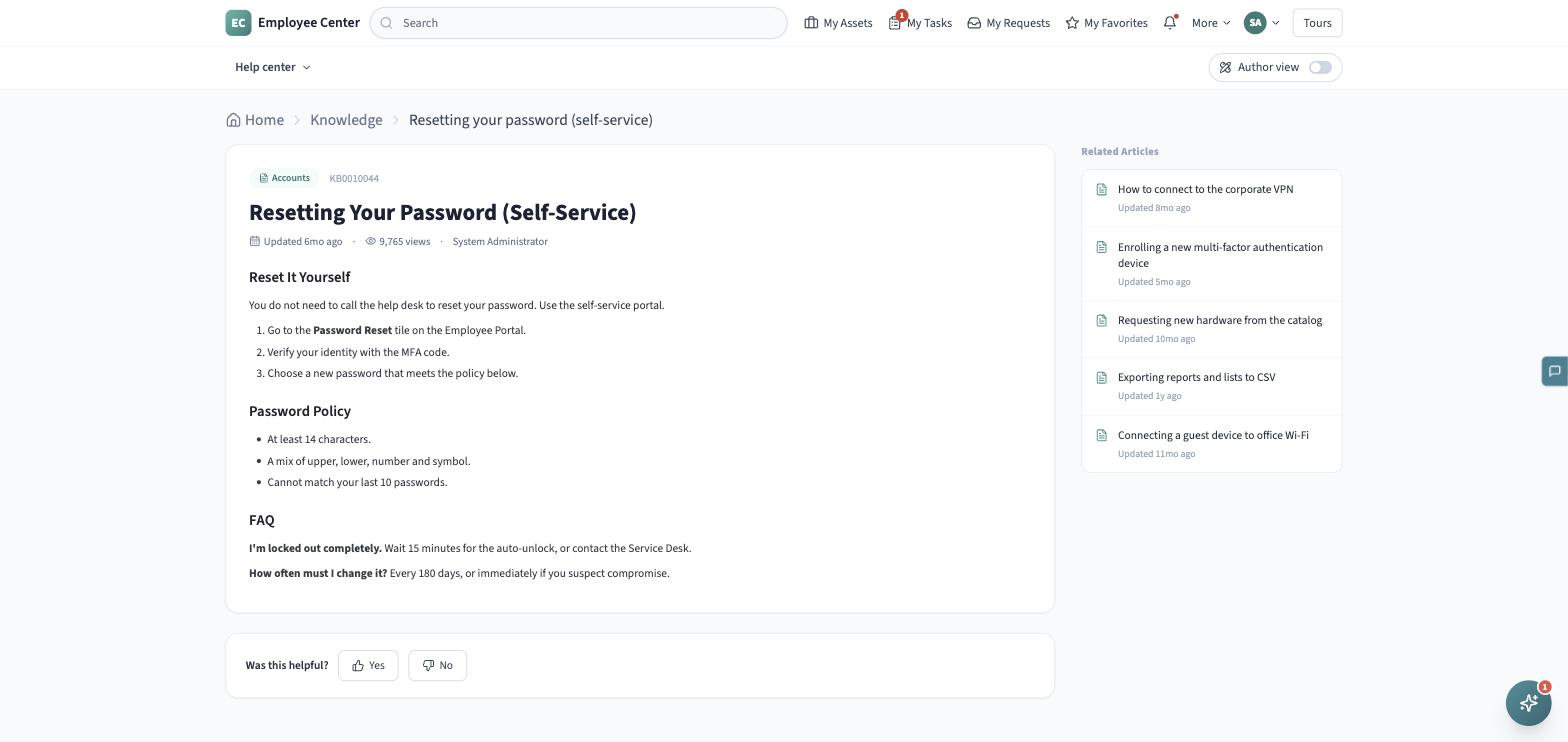
An article page shows:
- A category chip and article number at the top.
- The title, and a meta line with when it was last updated, how many views it has, and its author.
- The full article body.
- A Related articles panel alongside it, linking to other articles on the same topic.
Leaving feedback
Section titled “Leaving feedback”At the bottom of every article, click Yes or No to answer “Was this helpful?”. Your vote is recorded immediately, and a short thank-you note confirms it.
If you want to say more than a thumbs up or down, use the floating Provide feedback tab on the side of the page — it lets you rate your overall experience and leave a comment, optionally without attaching your name.
Browsing by category
Section titled “Browsing by category”Category landing pages (reached from the Help center menu or a Quick Link) mix knowledge articles in with requestable items under Support resources. Use the Filter by control there to narrow the list to Articles only, or search and sort the same way you would for a request.