Tracking your items
My Requests, My Tasks, and My Assets
Section titled “My Requests, My Tasks, and My Assets”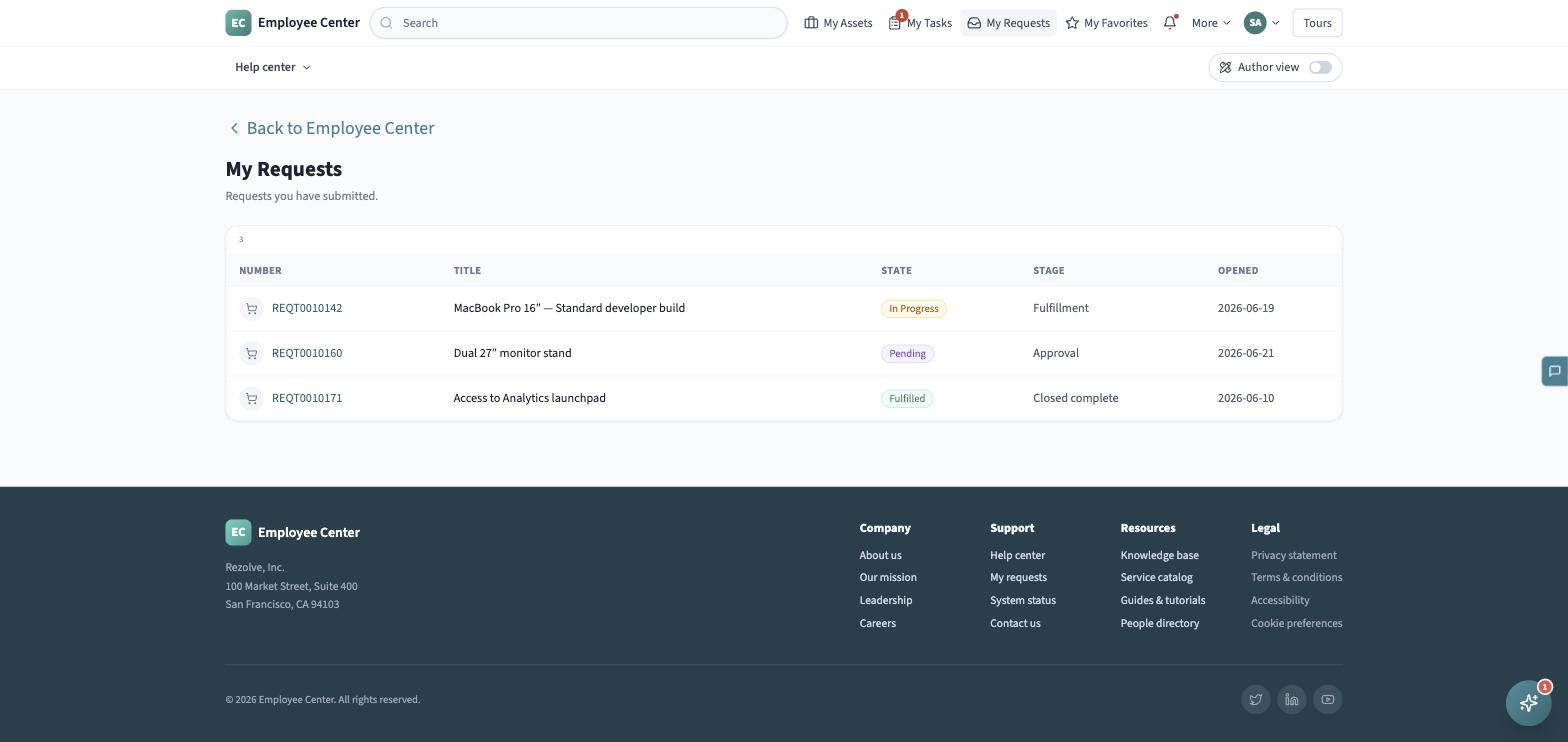
Open any of these from the top bar. Each is a table:
- My Requests shows the request’s number, title, state, stage, and when it was opened.
- My Tasks shows the task’s number, title, state, due date, and priority.
- My Assets shows what’s assigned to you, read-only.
Click a row’s number to open the full record.
What each state means
Section titled “What each state means”Requests and tasks move through a small set of states:
| State | What it means |
|---|---|
| Open | Submitted and waiting to be picked up. |
| In Progress | Someone is actively working it. |
| Pending | Paused — usually waiting on you or a third party. |
| Fulfilled | Completed. |
| Closed | Finished and archived. |
The record page
Section titled “The record page”Opening a request or task shows:
- A header with the title, its number, a state badge, and created/updated timestamps. A Show/Hide details toggle reveals a grid of the record’s fields underneath.
- An Activity tab with the record’s comment history, and an Attachments tab listing anything attached.
- A composer under Activity — type a comment and click Post (or press Enter), or click the paperclip to attach a file. Your comment is added to the activity list immediately, and any files you attach show up under the Attachments tab.
Assets
Section titled “Assets”An asset record is read-only — you can view its details (model, tag, assignment, and so on), but if something’s wrong with it, use the Report an issue link on the asset page to raise it instead of editing the record yourself.